Choosing a Braille code
Select the language and code used in the original material. UEB grade 1 is uncontracted; UEB grade 2 uses contractions. The same dots can mean different things in different codes. Changing the code does not change an existing result until you translate again.
German grade 2 and Japanese kanji back-translation have known limitations. Older Danish, Dutch and Italian table identifiers are mapped to their supported replacements. Belgian Dutch falls back to the available Dutch table; verify whether it suits your material. Nemeth and Marburg tables are not available in these tools.
Photo recognition
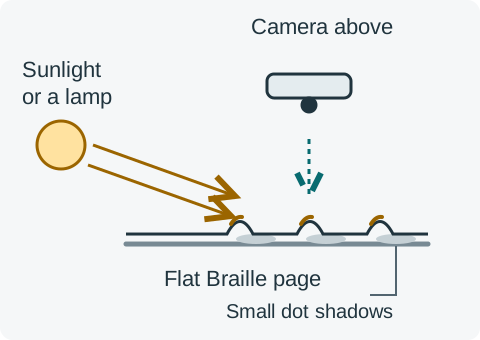
Light and small dot shadows make the embossing visible.
- Keep the page flat.
- Use sunlight or a lamp from the side, preferably towards the top edge of the page. Aim the light across the paper at an angle so the dots have bright edges and small shadows.
- Hold the camera directly above the page, parallel to the paper. Fit the page in the frame and keep the phone steady.
- Turn off the camera flash and focus on the dots. Check that the dots and their shadows are sharp. Move your phone or hand if it casts a large shadow across the page.
Choose a sharp JPG, PNG or GIF up to 10 MB and 40 megapixels. Turn on double-sided processing for interpoint pages. Review the orientation before translating. Recognition can misread dots; compare important text with the photo and correct cells before exporting.
Entering Braille
Paste Unicode Braille, use visual keys, or enable Six-key input. By default F, D, S enter dots 1, 2, 3 and J, K, L enter dots 4, 5, 6. Press keys together and release them to enter a cell. Number and custom mappings are available. Some keyboards cannot register all keys together; Sequential dots lets you build a cell then insert it.
Tab and Shift+Tab move between controls. Escape exits six-key mode. In the cell list, use arrow keys to select cells. Space changes a focused dot. Undo restores your previous edit. Braille displays can use the normal text input through your assistive technology.
Privacy and shared computers
Website photos are processed on the server. Use the result page's Copy result link button to save or share a result for 30 days after upload. The link works in another browser or device, and anyone with it can access the photo and result. Copying text does not save it in browser storage. Display, code and key preferences may be remembered. For sensitive documents use the mobile app, which processes everything on your device. Read the privacy policy.
Games and learning
Braille Games & Learning offers contraction practice, flashcards, typing, decoding and mistake correction. Exercises state whether they use UEB Grade 1 or Grade 2; the translation tool's selected language does not change them. Practice has no time limit. Typing speed is optional, and dot controls work without pressing several keys together. Enable six-key entry only while the Braille answer field has focus; Tab leaves it and Escape switches it off.
The Daily Braille Challenge has five questions and changes at midnight UTC. Everyone receives the same selection for that UTC date and question-bank version. Saving scores and completion history in your browser is optional; the Games page includes reset controls. Braille dot descriptions are available to assistive technology without revealing the English answer. Refreshable Braille display behaviour depends on your platform and assistive technology.
The exercises use a curated bank checked against Liblouis UEB tables, with rule references to the official ICEB Rules of Unified English Braille. They support practice; for formal instruction, discuss unfamiliar rules with a Braille teacher.
Having trouble?
Email hello@abcbraille.com. Describe the tool, Braille code and what happened. Please do not send sensitive documents unless you intend to share them for troubleshooting.